Input: blank fillable form
AcroForm with a name, checkbox, colour selection and city list.
Download PDF: Input: blank fillable form (15 KB)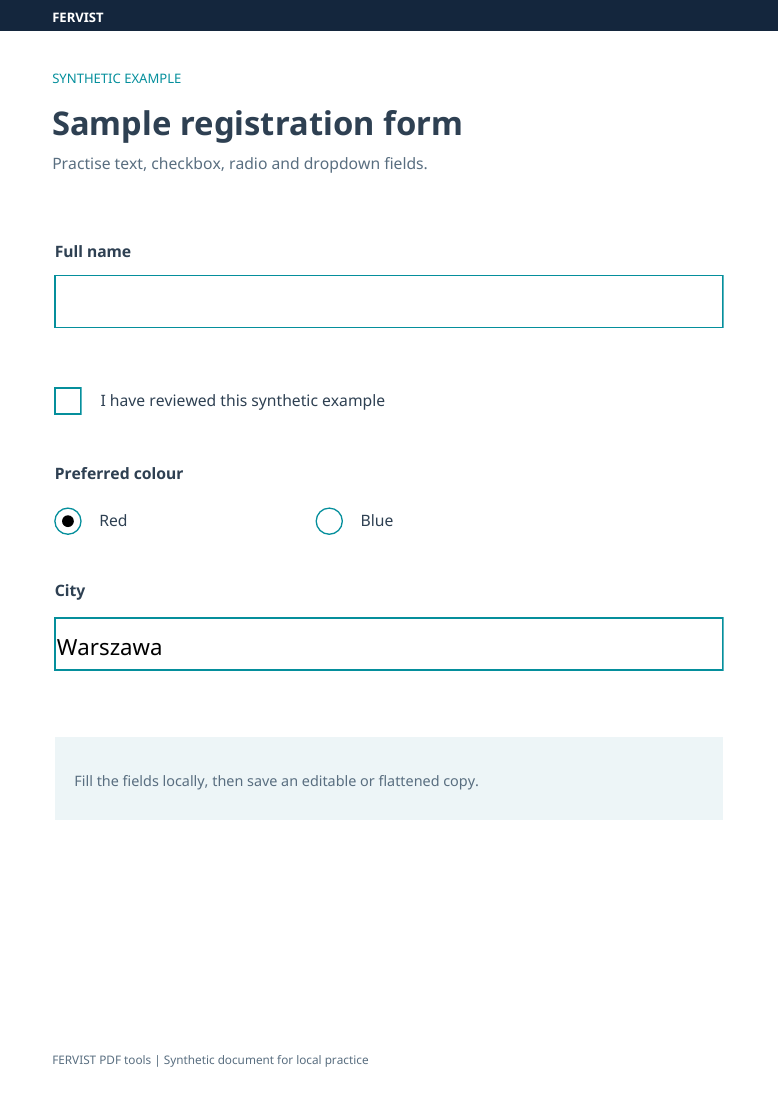
Page 1
Complete the interactive fields already present in your PDF, then save a copy.
Drop a PDF here
or use the button — one PDF at a time
Fill existing AcroForm text fields, checkboxes, radio choices, dropdowns and option lists. Choices are shown as single-selection lists; read-only fields cannot be changed. Flatten turns form values into page content rather than making the PDF resistant to later editing. Polish text uses an embedded font. Editable text fields containing Arabic, Hebrew, Chinese, Japanese or Korean are always converted to page content, even when Flatten is off.
Start with an AcroForm containing a text field, a checkbox and a dropdown with the option Málaga. Enter the text below, tick the checkbox and select Málaga.
| Flatten off | Text: Zoë García; checkbox: checked; dropdown: Málaga. These fields remain interactive in the downloaded copy. |
|---|---|
| Flatten on | Text: Zoë García; checkbox: checked; dropdown: Málaga. The values become page content and the fields are removed. |
A scan without interactive fields needs a text-placement tool instead. This tool fills AcroForm fields; it does not run form calculations or document scripts. XFA forms are outside the documented scope. This page has no password entry; use Unlock PDF first with a password you know, then choose the resulting copy here.
This tool fills the fields already defined in the PDF; it does not enlarge or redesign them. If an answer does not fit or the tool reports a layout-work limit, shorten the affected text and try again. Flatten removes interactivity, so it should not be used as a substitute for checking that the complete answer is readable.
If you need text outside an existing field, use Edit PDF to place text on the page. That adds page content rather than creating a new AcroForm field. Keep your original and inspect every filled page in the downloaded copy before sharing it.
Download an input file, choose it in the tool above and use the settings shown. You can also download the completed results for comparison. The previews show actual pages from these files; all data are synthetic.
Fill the name and city shown in the result, check the box and select Blue. Leave Flatten off for an editable copy; turn it on for a static copy. These are synthetic form data, not a real application or a signed document.
AcroForm with a name, checkbox, colour selection and city list.
Download PDF: Input: blank fillable form (15 KB)Zoë García · Málaga · checkbox selected · Blue. Flatten off; reopen the PDF to change its fields.
Download PDF: Result: still editable (17 KB)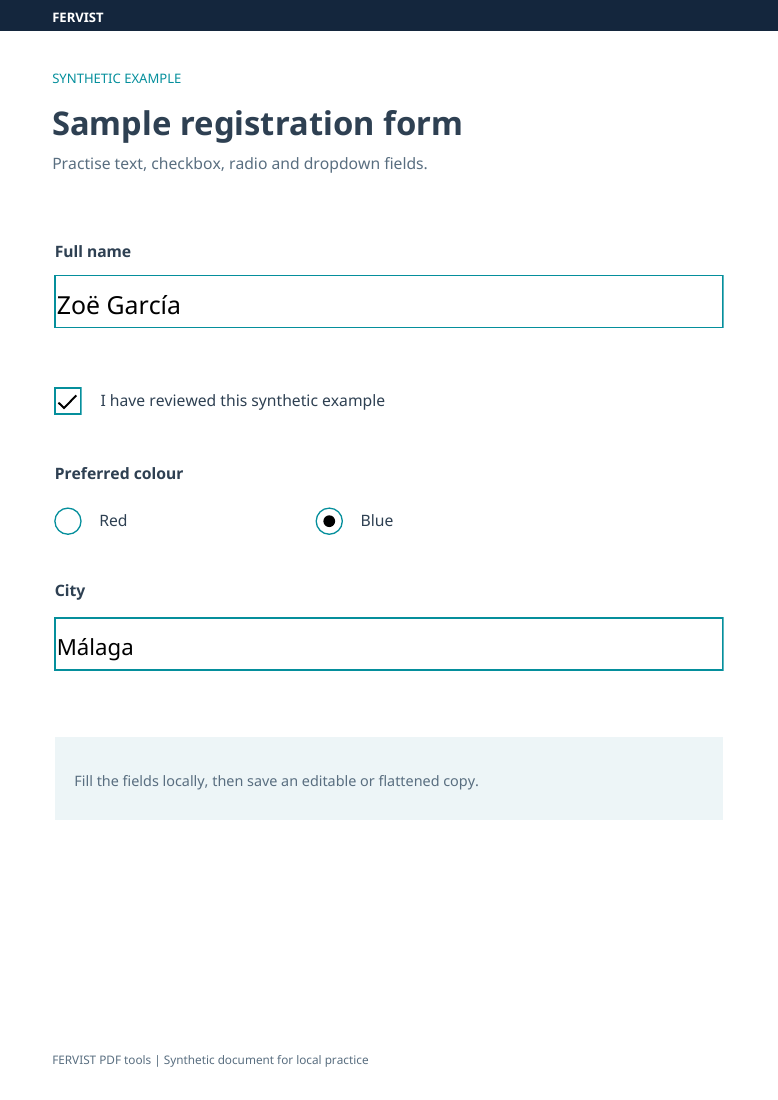
The same values with Flatten on. The visible result remains, but the form fields are removed.
Download PDF: Result: flattened (17 KB)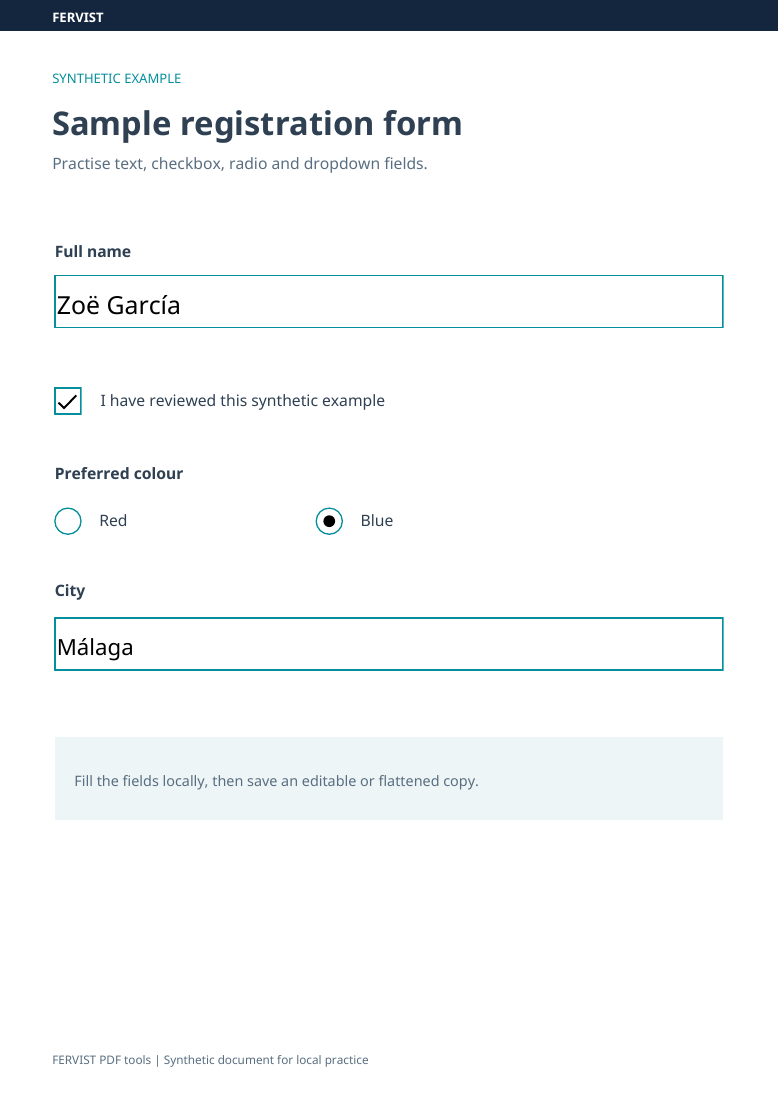
This tool fills existing interactive fields. If a PDF has none, use Sign PDF to place text, or Edit PDF to type anywhere on the page.
Flatten converts field values to page content and removes the interactive fields. It is not protection against later PDF editing. With Flatten off, ordinary Latin-text fields remain interactive; editable fields containing Arabic, Hebrew, Chinese, Japanese or Korean are converted to page content regardless.
Yes — filled text is drawn with an embedded Unicode font, so accented and Polish characters render correctly.
This tool runs entirely in your browser. After the page has loaded, nothing about your document is sent to a server — no upload, no account, no watermark.
By selecting files, you confirm you may process them and accept the Terms of Use.