Input: sample document properties
A synthetic PDF with Info fields and a separate XMP packet.
Download PDF: Input: sample document properties (10 KB)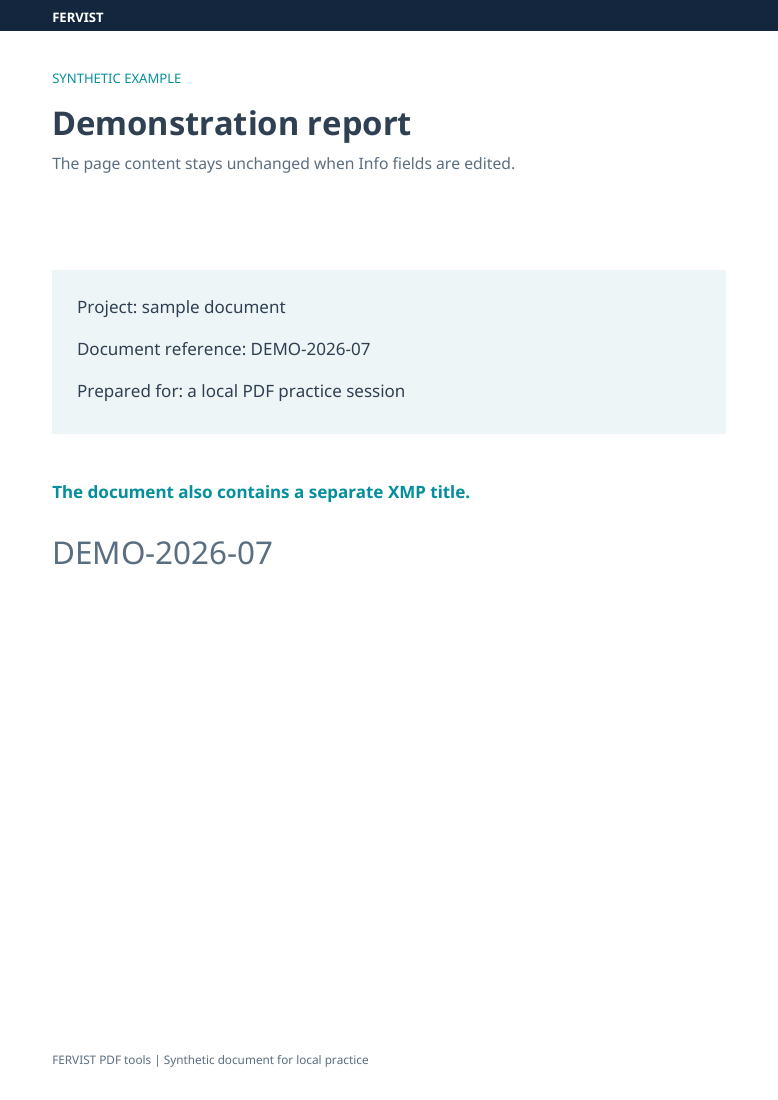
Page 1
Change a PDF’s title, author, subject, keywords and creator app on your device.
Drop a PDF here
or use the button — one PDF at a time
Edit the five document information fields shown in the editor: title, author, subject, keywords and creator app. Saving also updates the modification date. The page content stays unchanged. Existing XMP metadata is neither updated nor removed, so a different title or author stored in XMP can remain in the file. Editing these fields is not anonymization.
The input has Title “Scan_0007” and Author “Scanner”. Its existing XMP contains separate values; those XMP values remain unchanged.
| Title | Scan_0007 → Demonstration report — Zoë García |
|---|---|
| Author | Scanner → FERVIST demo |
| Subject | Résumé |
| Keywords | Enter demo, report. Saved Keywords: demo report. |
| Creator app | Test app |
| Downloaded copy | The filename gains _metadata.pdf. The modification date is refreshed; existing XMP remains unchanged. |
This editor has no password entry. For a protected document, use Unlock PDF first with a password you know, then choose the resulting copy here. Metadata removal is a separate task; local processing does not mean the output contains no identifying information.
First check that you opened the downloaded _metadata.pdf copy. A PDF can store an author or title both in document information fields and in XMP. This editor changes the information fields; a reader that uses existing XMP can still show the previous value.
To clear both stores, open that copy in Remove PDF metadata and keep its XMP option enabled. Then inspect the result. Clearing metadata does not remove names printed on pages or identifying details visible in images.
Download an input file, choose it in the tool above and use the settings shown. You can also download the completed results for comparison. The previews show actual pages from these files; all data are synthetic.
The page looks the same before and after editing. The table compares the PDF Info fields actually stored in these files. The separate XMP packet is preserved; editing Info does not remove metadata or anonymize a document.
A synthetic PDF with Info fields and a separate XMP packet.
Download PDF: Input: sample document properties (10 KB)Enter the values in the After column, apply the changes, then reopen the downloaded PDF and inspect its document properties.
Download PDF: Result: edited Info fields (11 KB)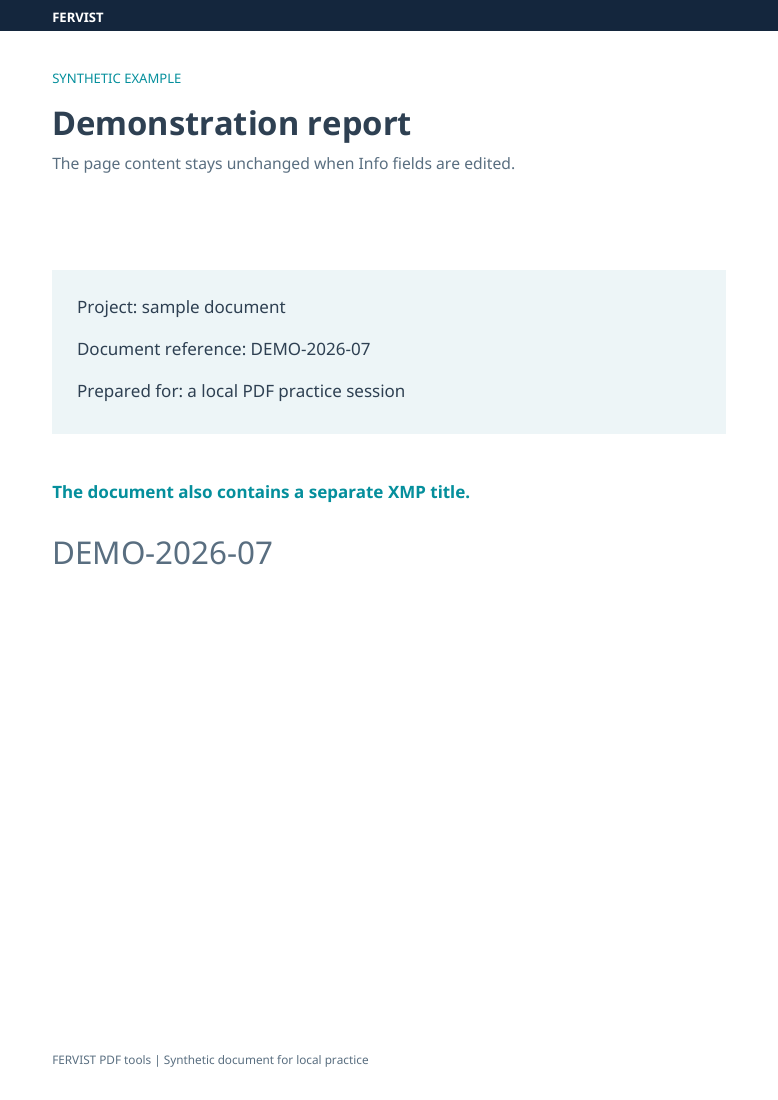
| Property | Before | After |
|---|---|---|
| Title | Scan_0007 | Demonstration report - Zoë García |
| Author | Scanner | FERVIST demo |
| Subject | Synthetic source metadata | Résumé |
| Keywords | source demo | demo report |
| Creator | Scanner demo | Test app |
| Separate XMP packet | FERVIST_XMP_OLD_20261023 | Preserved unchanged |
Yes. Metadata is stored as Unicode text, so titles and names with characters like ż, ó or ł are saved correctly.
The page content stays unchanged. Saving writes the information fields shown in the editor and refreshes the modification date. It does not update existing XMP metadata.
Use Remove PDF metadata to clear document information fields and, with its XMP option enabled, remove XMP. Editing an author here does not remove other personal information from a document.
This tool runs entirely in your browser. After the page has loaded, nothing about your document is sent to a server — no upload, no account, no watermark.
By selecting files, you confirm you may process them and accept the Terms of Use.